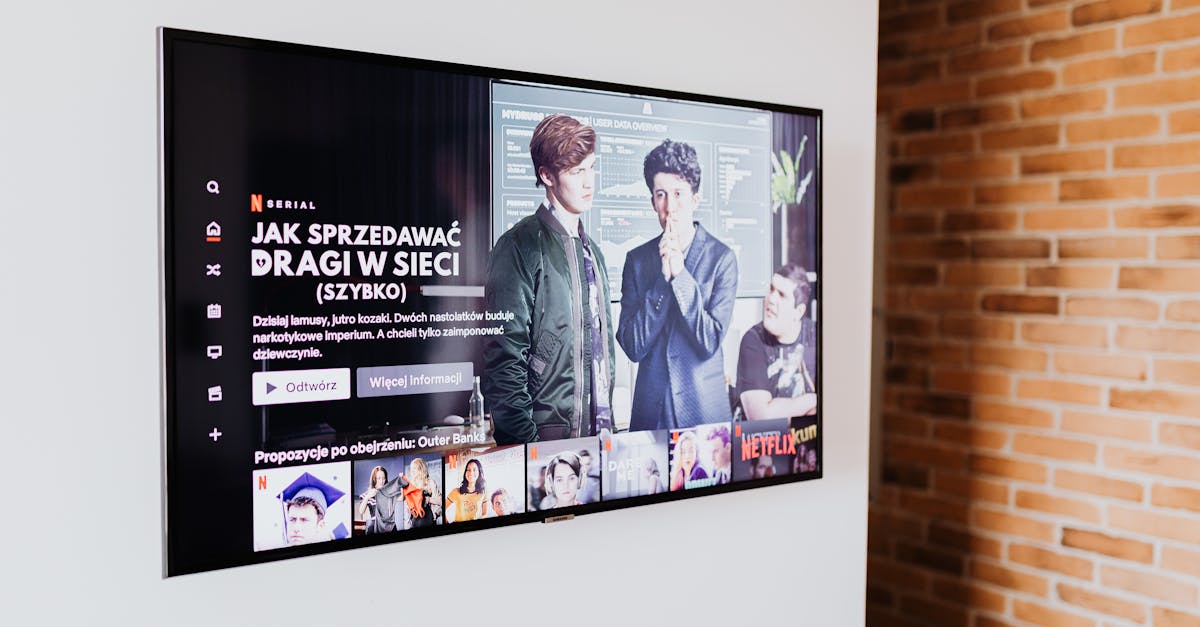
7 Reasons Your Smart TV Feels Slow (And What Actually Restores Its Speed)
Have you ever settled onto the couch, ready to unwind with your favorite streaming service, only to be met with endless buffering, frozen menus, or apps that crash the moment you open them? It’s a frustratingly common scenario in 2026. That ‘smart’ TV you invested in, promising seamless entertainment, has become a source of annoyance. You’ve tried restarting it, perhaps even unplugging it for a minute, but the sluggishness persists. It feels like you’re waiting longer for the interface to respond than you are for the actual content to play.
I’ve been there more times than I care to admit. As someone who relies on smart home tech for both productivity and leisure, a slow smart TV isn’t just an inconvenience; it’s a disruption. The mistake I see most often is people assuming it’s just ‘how smart TVs are’ or that they need to buy a new one. But in my experience, the root causes of smart TV slowdowns are often overlooked and, crucially, fixable. It’s rarely about the hardware failing; it’s usually about how the software and network are being managed. What changed everything for me was adopting a more proactive and diagnostic approach, rather than simply accepting the lag.
Key Takeaways
- Too many background apps are consuming your TV’s limited processing power and memory.
- An overloaded or improperly configured home Wi-Fi network directly impacts streaming performance.
- Outdated firmware can introduce bugs and compatibility issues that slow your TV down.
- Automatic content recognition (ACR) and other data-collection features secretly consume resources.
- Unoptimized display settings, especially motion smoothing, can create perceived lag.
- Your TV’s internal storage might be nearly full, causing slowdowns during operation.
- External devices and faulty HDMI connections can introduce unexpected performance bottlenecks.
Overloaded Background Apps Clog Your System Resources
One of the most insidious culprits behind a slow smart TV is a multitude of background applications. Modern smart TVs are essentially computers designed for media, and like any computer, they have finite processing power and RAM. When you open an app on your smart TV, even if you navigate away from it, it often doesn’t truly close. Instead, it minimizes or suspends, waiting in the background for you to return. Over time, these ‘ghost’ apps accumulate, each silently consuming a small slice of your TV’s precious resources. This leaves less processing power and memory for the app you actually want to use, leading to noticeable slowdowns, delayed responses, and even crashes.
In my experience, simply backing out of an app or switching inputs isn’t enough. Many smart TV operating systems, such as Android TV or webOS, don’t have an obvious ‘Quit’ or ‘Force Close’ button readily accessible. This is a design choice aimed at user convenience, making apps load faster upon return, but it comes at the cost of system performance if not managed. I found that I had dozens of apps running, from streaming services I hadn’t touched in weeks to games I’d played once and forgotten. Each was a tiny drain, collectively creating a significant bottleneck.
To combat this, you need to actively manage your running applications. Most smart TVs have a ‘running applications’ or ‘apps’ section within their settings menu. For example, on an Android TV, navigate to Settings > Apps > Running services (or similar). Here, you can usually select individual apps and choose ‘Force Stop.’ This truly closes the application, freeing up its consumed resources. On other platforms like webOS or Tizen, you might need to highlight the app on the home screen, press and hold the ‘OK’ or ‘Select’ button, and then choose ‘Close’ or ‘Exit.’ This isn’t a one-time fix; it’s a habit. I now make it a point to perform this cleanup weekly, or whenever I notice a persistent dip in responsiveness. The immediate improvement in speed and fluidity is often dramatic, proving just how much these hidden processes were impacting performance.
Your Wi-Fi Network is Congested or Misconfigured
A smart TV’s ‘smartness’ is inextricably linked to its network connection. When your TV feels slow, especially during streaming, many immediately blame the internet service provider. While a slow internet connection can certainly be a factor, more often than not, the bottleneck isn’t outside your home but within your own Wi-Fi network. A congested or misconfigured home network can cripple your TV’s ability to download data efficiently, leading to buffering, low-resolution streams, and unresponsive online features.
Consider your home network as a highway. Every device connected to your Wi-Fi router is a car on that highway. If you have multiple devices streaming 4K video, playing online games, downloading large files, and running smart home devices simultaneously, that highway quickly becomes gridlocked. The TV might not be getting enough bandwidth, even if your overall internet speed is theoretically high. Furthermore, interference from neighboring Wi-Fi networks or other electronics (like microwaves and cordless phones) operating on similar frequencies can degrade signal quality, forcing your TV to re-request data packets, which manifests as lag.
The first step to diagnose this is to run a speed test on your TV. Most smart TVs have a built-in speed test, or you can download a third-party app. Compare this result to the speed you pay for from your ISP. If there’s a significant difference, the problem is likely local. Next, consider moving your TV closer to the router or, ideally, using a wired Ethernet connection. Ethernet bypasses Wi-Fi interference entirely and provides a more stable, faster connection. If wiring isn’t an option, explore changing your router’s Wi-Fi channel to one with less interference (using a Wi-Fi analyzer app on your phone can help identify the least congested channels). Finally, ensure your router’s firmware is up to date, as manufacturers often release updates that improve Wi-Fi performance and stability. I also prioritize my TV’s bandwidth using Quality of Service (QoS) settings on my router, dedicating a larger share of the available bandwidth to streaming devices, which has significantly reduced buffering during peak usage times.
Outdated Firmware Introduces Bugs and Inefficiencies
Software updates often feel like an annoyance, but when it comes to smart TVs, overlooking firmware updates is a surefire way to invite sluggish performance. Manufacturers regularly release new firmware versions that don’t just add features; they fix bugs, improve compatibility with streaming services, enhance security, and, critically, optimize system performance. Running an outdated version of your TV’s operating system is like trying to run 2026 software on a five-year-old operating system on your computer – it will be slow, unstable, and prone to errors.
In my early days with smart TVs, I often deferred updates, thinking, ‘If it’s not broken, don’t fix it.’ This was a mistake. I noticed my TV would randomly freeze during app launches, or certain streaming services would load incredibly slowly despite a strong internet connection. It wasn’t until I manually checked for updates that I realized I was several versions behind. Each update brought with it a raft of ‘performance improvements’ and ‘stability enhancements,’ and applying them consistently made a tangible difference in the day-to-day fluidity of the interface.
The process for updating your smart TV’s firmware varies by manufacturer, but it’s typically found within the Settings menu, under sections like Support, About, or System. Look for an option like Software Update or Check for Updates. Some TVs allow automatic updates, which I highly recommend enabling. If your TV requires a USB update, follow the manufacturer’s instructions carefully. This usually involves downloading the firmware file to a USB drive from their website and plugging it into your TV. While it can take some time, ensuring your TV is running the latest software is a foundational step for optimal performance. It’s an often-ignored maintenance task that can single-handedly resolve many common slowdown issues without having to factory reset or purchase new hardware.
Hidden Data Collection Drains Resources in the Background
Many modern smart TVs come with features designed for ‘personalization’ and ‘targeted advertising,’ which often means extensive data collection. Features like Automatic Content Recognition (ACR) passively monitor what you watch across all inputs (broadcast, streaming, gaming consoles) to build a profile of your viewing habits. While seemingly benign, these processes run continuously in the background, consuming CPU cycles, memory, and network bandwidth. This constant data collection and transmission silently contribute to your TV’s overall sluggishness, even if you’re not actively interacting with a streaming app.
I became acutely aware of this after noticing my TV would occasionally feel warm and the network activity light on my router would flicker even when the TV was ‘off’ or displaying a static image from a game console. Digging into the privacy settings revealed a trove of options related to ACR, personalized ads, and data sharing. Disabling these felt like giving my TV a much-needed breathing room. The immediate impact wasn’t always as dramatic as closing background apps, but over time, the general responsiveness improved, and those inexplicable slowdowns became far less frequent.
To manage this, navigate to your TV’s Settings menu and look for sections related to Privacy, Terms & Conditions, Data Usage, or Smart Features. The exact terminology will vary, but you’re looking for options that allow you to disable features like: ACR (Automatic Content Recognition), Personalized Advertising, Interactive Services, Viewing Information Services, or Data Collection. Be prepared to click through a few layers of menus, as these options are sometimes intentionally buried. It might feel like a minor adjustment, but by limiting your TV’s constant surveillance, you reduce the background workload, freeing up valuable resources for the tasks you actually want your TV to perform. It’s not just about privacy; it’s about reclaiming your TV’s performance from invisible background operations.
Unoptimized Display Settings Create Perceived Lag
Sometimes, your smart TV isn’t truly slow, but it feels slow due to unoptimized display settings. Modern TVs come packed with an array of image processing features, many designed to ‘enhance’ the picture. While some are genuinely beneficial, others, especially motion smoothing (often marketed as ‘Motion Flow,’ ‘TruMotion,’ ‘Auto Motion Plus,’ or similar), can introduce a significant amount of input lag and create an unnatural, juddery appearance that many perceive as a slow or unresponsive interface. These features require the TV’s processor to perform complex calculations in real-time, adding frames to create smoother motion, but this processing delay can make your remote commands feel sluggish and contribute to overall system drag.
For years, I unknowingly suffered through the ‘soap opera effect’ and wondered why my games felt less responsive on my new TV. It turns out, the default picture settings on many TVs are designed to look impressive in a brightly lit showroom, not for optimal home viewing or interactive use. Once I learned to disable these aggressive processing modes, the perceived lag vanished, and my content looked more natural. The TV felt snappier, even though its raw processing speed hadn’t changed, because it was no longer trying to perform unnecessary, resource-intensive calculations.
To address this, delve into your TV’s Picture Settings or Display Settings menu. Look for options related to Motion Smoothing, Motion Interpolation, or LED Clear Motion. Turn these settings off or set them to their lowest possible value. Many TVs also offer specific Game Mode or PC Mode presets. Activating these modes typically bypasses most of the aggressive image processing to reduce input lag, making your TV feel far more responsive, especially when navigating menus or playing video games. Experiment with these settings. You’ll likely find that by turning off some of the ‘enhancements,’ your TV not only feels faster but also provides a more authentic and enjoyable viewing experience, free from artificial judder and input delay. This is a quick and effective fix for perceived sluggishness that often doesn’t involve deep system changes.
Full Internal Storage Hampers Performance
Just like your smartphone or computer, your smart TV has a finite amount of internal storage. While you might not be saving documents or photos on it, apps, app data, system caches, and even temporary files from streaming can quickly fill up this space. When internal storage nears its capacity, the TV’s operating system struggles to find space for temporary files needed for smooth operation. This leads to slower app launches, increased buffering as the TV tries to cache streaming content, and general system lag, as the processor has to work harder to manage limited storage resources.
I once ignored a persistent notification about ‘low storage’ on my Android TV for weeks. The TV became increasingly unresponsive, with apps crashing frequently. It felt like walking through treacle. It was a clear demonstration that even seemingly minor storage issues could have a disproportionately large impact on performance. Clearing out unnecessary apps and data made an immediate and noticeable difference, much like decluttering a physical space helps it function better.
To check and manage your smart TV’s internal storage, go to Settings > Storage (or a similar path). Here, you’ll typically see a breakdown of how your storage is being used. You can then selectively uninstall apps you no longer use. Don’t just close them; actually uninstall them. Also, look for options to clear app caches (e.g., for streaming apps like Netflix or YouTube, which can accumulate significant cached data over time). Some TVs might also have a ‘Clear Data’ option for individual apps, which removes all user data and settings, effectively giving the app a fresh start (though you’ll need to log back in). Regularly reviewing and clearing out unused apps and cached data is a simple maintenance habit that can prevent many storage-related slowdowns, ensuring your TV has ample breathing room to operate smoothly. It’s a bit like spring cleaning for your digital living room.
External Devices and Faulty HDMI Connections Introduce Bottlenecks
While we focus heavily on the TV itself, external devices connected to it, and the quality of those connections, can also introduce significant performance issues. A faulty HDMI cable, an unoptimized streaming stick, or even a connected soundbar with outdated firmware can create unexpected bottlenecks that manifest as a slow or unresponsive TV experience. For instance, if your primary content source is a streaming device (like a Fire Stick or Roku), and that device is struggling, you’ll perceive the entire TV as slow, even if the TV’s internal processing is fine. Similarly, an HDMI cable that’s not rated for the bandwidth required for 4K HDR content can cause dropped frames, signal interruptions, and perceived lag.
In my setup, I once spent days troubleshooting buffering on my smart TV, only to discover the issue was a cheap HDMI cable connecting my game console. It wasn’t consistently delivering the signal, causing the TV to constantly re-negotiate the connection and impacting overall system responsiveness. Another time, my soundbar’s outdated firmware caused intermittent audio dropouts and delayed responses from the TV remote. These external factors are easy to overlook because they’re not directly part of the TV’s internal operating system, yet their influence is profound.
Start by isolating the problem. Unplug all external HDMI devices and see if the TV’s native smart features perform better. If they do, reintroduce devices one by one to pinpoint the culprit. For streaming sticks, ensure they are also updated to their latest firmware, and consider performing a factory reset if they consistently perform poorly. Check your HDMI cables: ensure they are high-speed rated, especially for 4K content. Sometimes, simply swapping out a questionable cable for a certified high-speed one can resolve a surprising number of performance issues. Also, remember to check the firmware of any connected soundbars or receivers, as these can impact the HDMI-CEC (Consumer Electronics Control) communication, leading to delays in remote commands. By systematically evaluating your external ecosystem, you can eliminate hidden bottlenecks and ensure your TV is working with, not against, its connected peripherals.
Frequently Asked Questions
Why does my smart TV get slower over time?
Smart TVs slow down over time primarily due to accumulated background apps, filled internal storage from cached data, and outdated firmware. Each of these factors independently and collectively consumes the TV’s limited processing power and memory, leading to a noticeable degradation in responsiveness and speed.
Should I clear my smart TV’s cache regularly?
Yes, clearing your smart TV’s cache regularly, especially for frequently used streaming apps like Netflix or YouTube, is a good practice. Cached data can accumulate over time and consume valuable storage, contributing to slowdowns and app instability. Check your TV’s settings for ‘Storage’ or ‘Apps’ to manage caches.
Is it better to use a wired Ethernet connection for my smart TV?
Absolutely. A wired Ethernet connection offers superior stability and speed compared to Wi-Fi. It eliminates interference, reduces latency, and ensures a consistent bandwidth, which is crucial for 4K streaming and overall smart TV responsiveness. If feasible, always opt for Ethernet.
Does a factory reset make a smart TV faster?
A factory reset can significantly improve a smart TV’s speed by erasing all user data, installed apps, and custom settings, effectively returning it to its out-of-the-box state. This clears accumulated clutter and allows the operating system to run fresh. However, it means you’ll need to set up your TV and reinstall apps from scratch.
How often should I update my smart TV’s firmware?
It’s best to keep your smart TV’s firmware updated as soon as new versions are available. Manufacturers release updates to fix bugs, improve performance, enhance security, and add features. Enable automatic updates if your TV supports it, or check manually in the ‘Settings’ menu every few months.
Written by Lena Petrova
Productivity & Home Life
Lena brings a decade of experience in lifestyle journalism, focusing on practical living and home organization.
You Might Also Like

A Beginner's Guide to Home Network Security Beyond Changing the Password
Strengthen your home network security beyond simple passwords. Learn essential, actionable steps to protect your data and privacy.

5 Overlooked Reasons Your New Home Network Feels Slower Than Advertised
Uncover five subtle reasons your new home network underperforms its advertised speed, and learn actionable solutions to boost your internet performance.
Do I Need a Carbon Monoxide Detector in My Home?
Unsure if you need a carbon monoxide detector? This guide reveals the hidden dangers of CO poisoning and what truly protects your home.